Member invitation
The member invitation screen allows you to invite new members to the site.
Accessing the screen
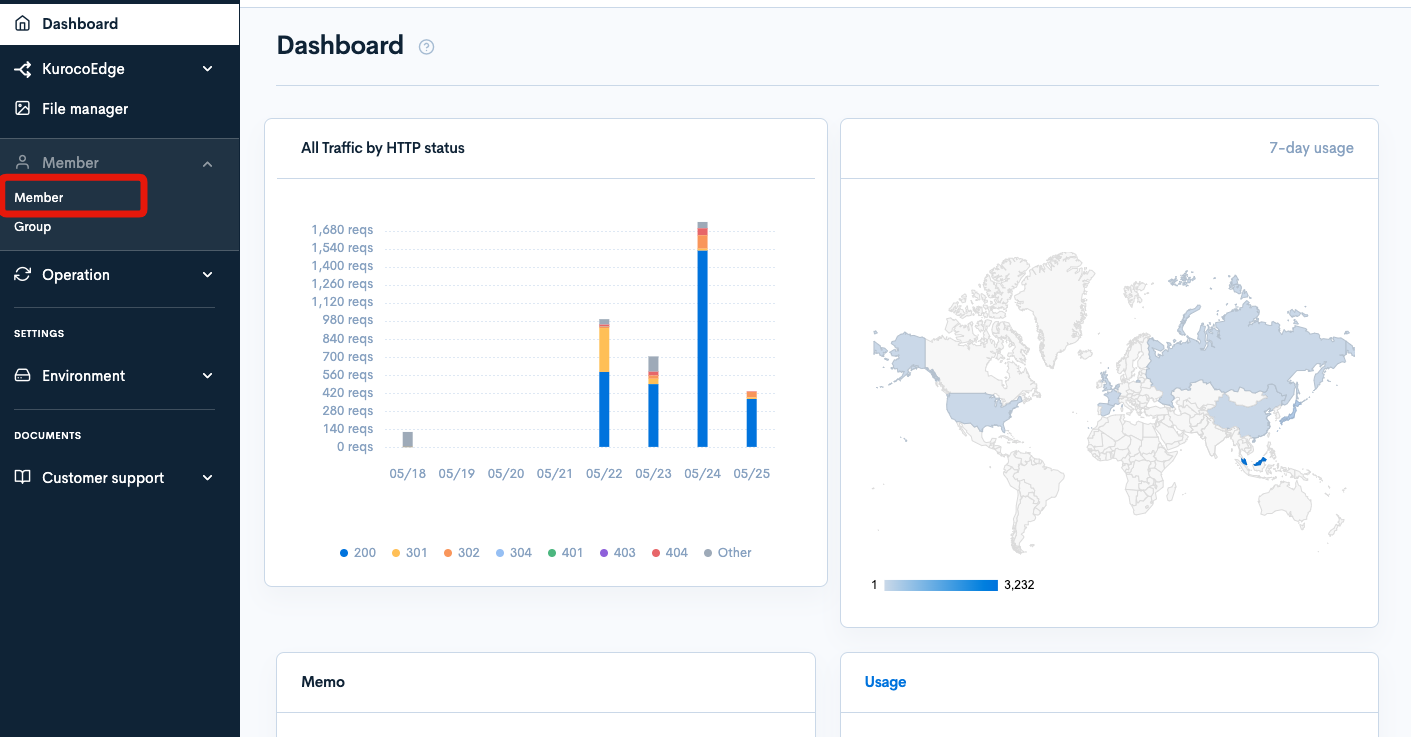
In the left sidebar menu, click [Member] -> [Member].
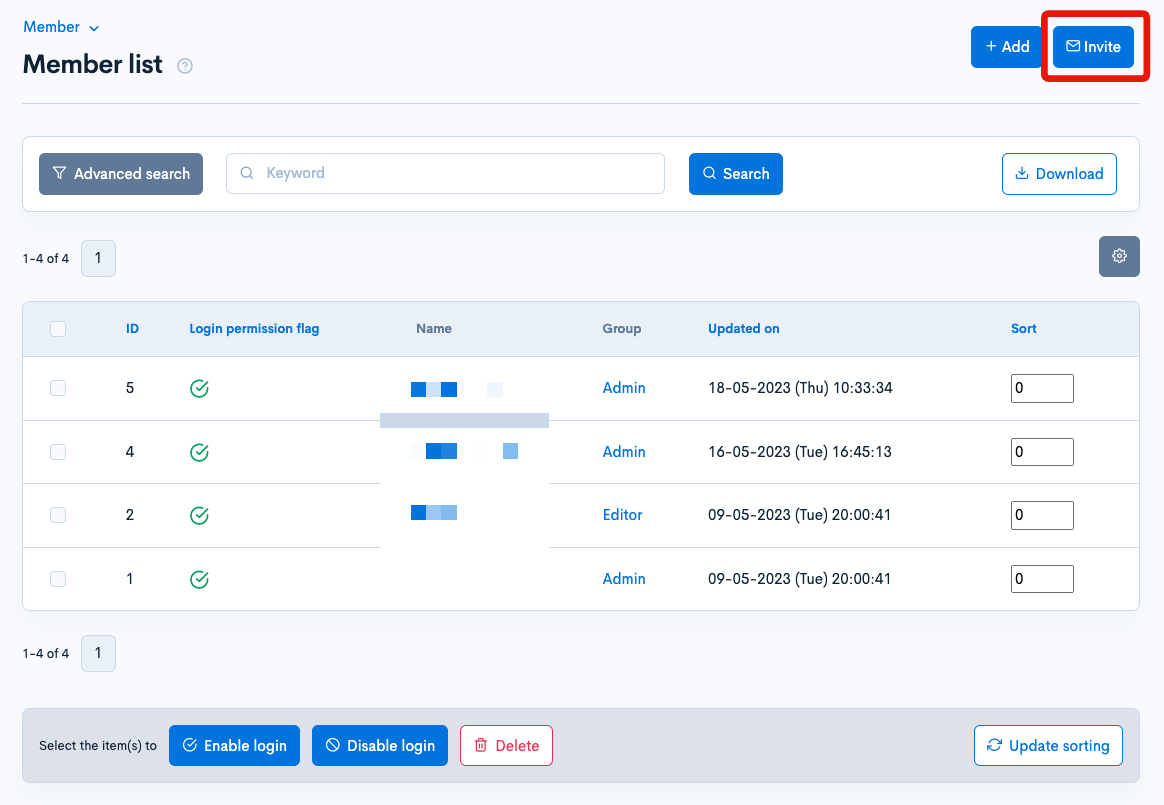
On the member list screen, click [Invite] in the upper right corner.
Enter recipient email addresses

| Field | Description |
|---|---|
| Please enter the email addresses of the recipients | An invitation will be sent to this address. For multiple recipients, enter each address on a new line. |
| Registered groups | Select the user group(s) the recipient will belong to. |
| Expiry date | Set the expiration date of the invitation. |
| Next button | Click [Next] to proceed to the invitation creation screen. |
Invitation
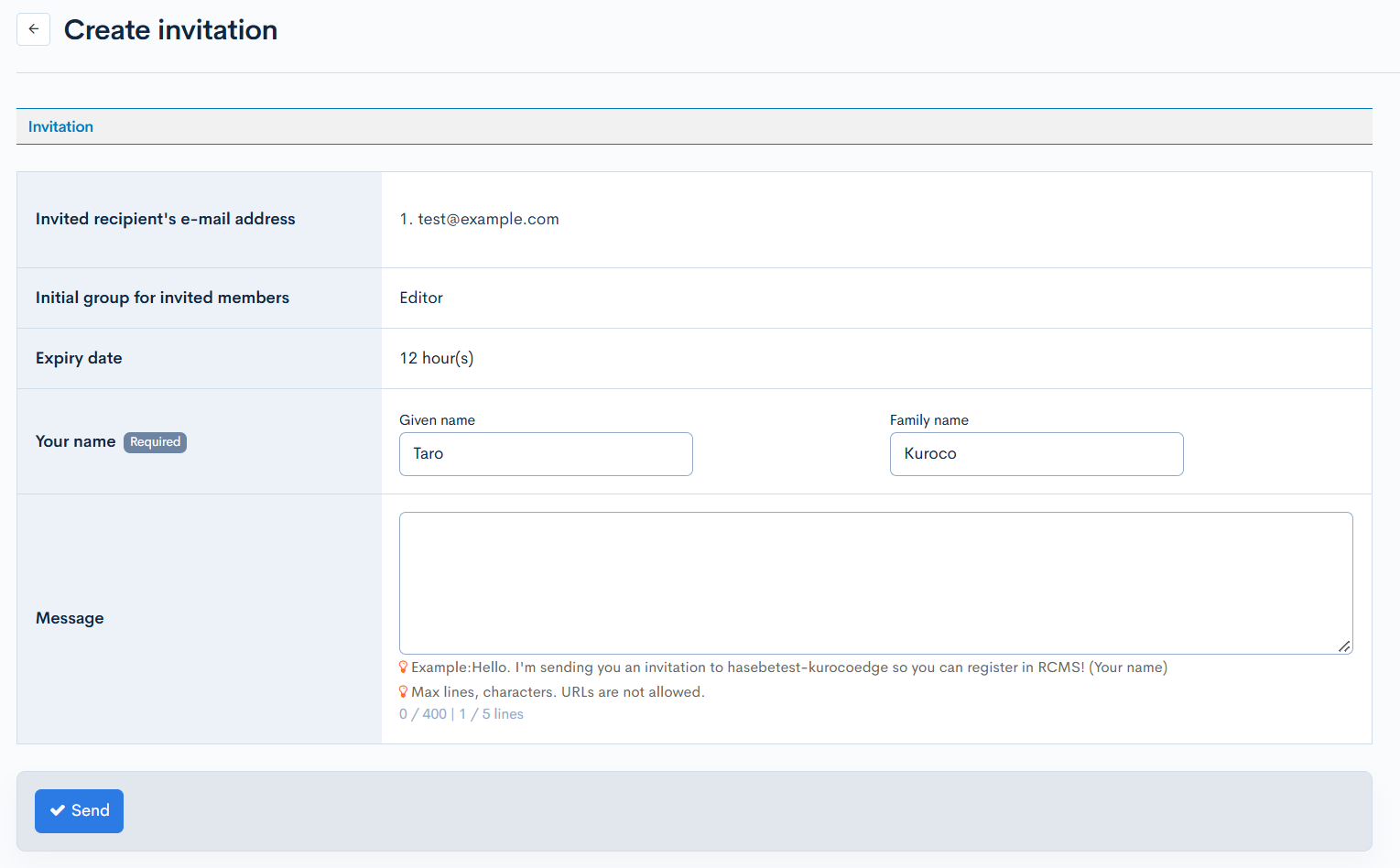
| Field | Description |
|---|---|
| Invited recipient's e-mail address | E-mail address the invitation will be sent to. |
| Initial group for invited members | User group(s) the recipient will belong to. |
| Expiry date | Expiration date of the invitation. |
| Your name | Enter the name of the person sending the invitation. |
| Message | Enter the message to include in the invitation e-mail. |
| Example | An example message is displayed. |
| Send button | Click [Send] to send the invitation e-mail. |
Invited members list

| Field | Description |
|---|---|
| Search | Filters the list by the specified criteria. |
| Invited e-mail address | E-mail address of the invited member. |
| Registration URL | URL included in the invitation e-mail. |
| Registered groups | User group(s) the invited member will belong to. |
| Invited on | Date and time the invitation was sent. |
| Resend | Select the checkboxes in the left-most column and click this button to resend the invitation e-mail. |
| Delete | Select the checkboxes in the left-most column and click this button to delete the invitation. |
Support
If you have any other questions, please contact us or check out Our Discord Community.